
Introducing FormBuilder: The first ODK Integrated Development Environment (IDE)

ODK is a great survey tool, but when we introduce it to companies or individuals who have never used it, their first question is: "How do I create my own form?" And here is what the struggle used to be. ODK is basically a programming language (XML, XPath). We can abstract much of that complexity with XLSForm, but the learning curve is still quite steep.

Users need to learn the question types, what data goes in each header, and the logic, which is still a major blocker for a newbie. Solutions like KoboToolbox, CommCare, and SurveyCTO have created Survey Builders that help new users create forms; however, they abstract so much of ODK that users have no clue what's happening behind the scenes, and the interface becomes an obstacle when dealing with complex logic. So there are two camps: those who need a guided process to build a form use the point-and-click interface, and those who need to create a complex ODK form use Excel. But users have no learning path from the point-and-click interface to mastering ODK.

When I started discussing FormBuilder with our development team, one of them suggested an IDE. Visual Studio is an IDE; it helps new users get up to speed with the code by providing helpers, but it also lets expert users ramp up their code. So we decided to build the first ODK IDE!

In this blog, we show some of FormBuilder's features. You can also see it in action in this video.
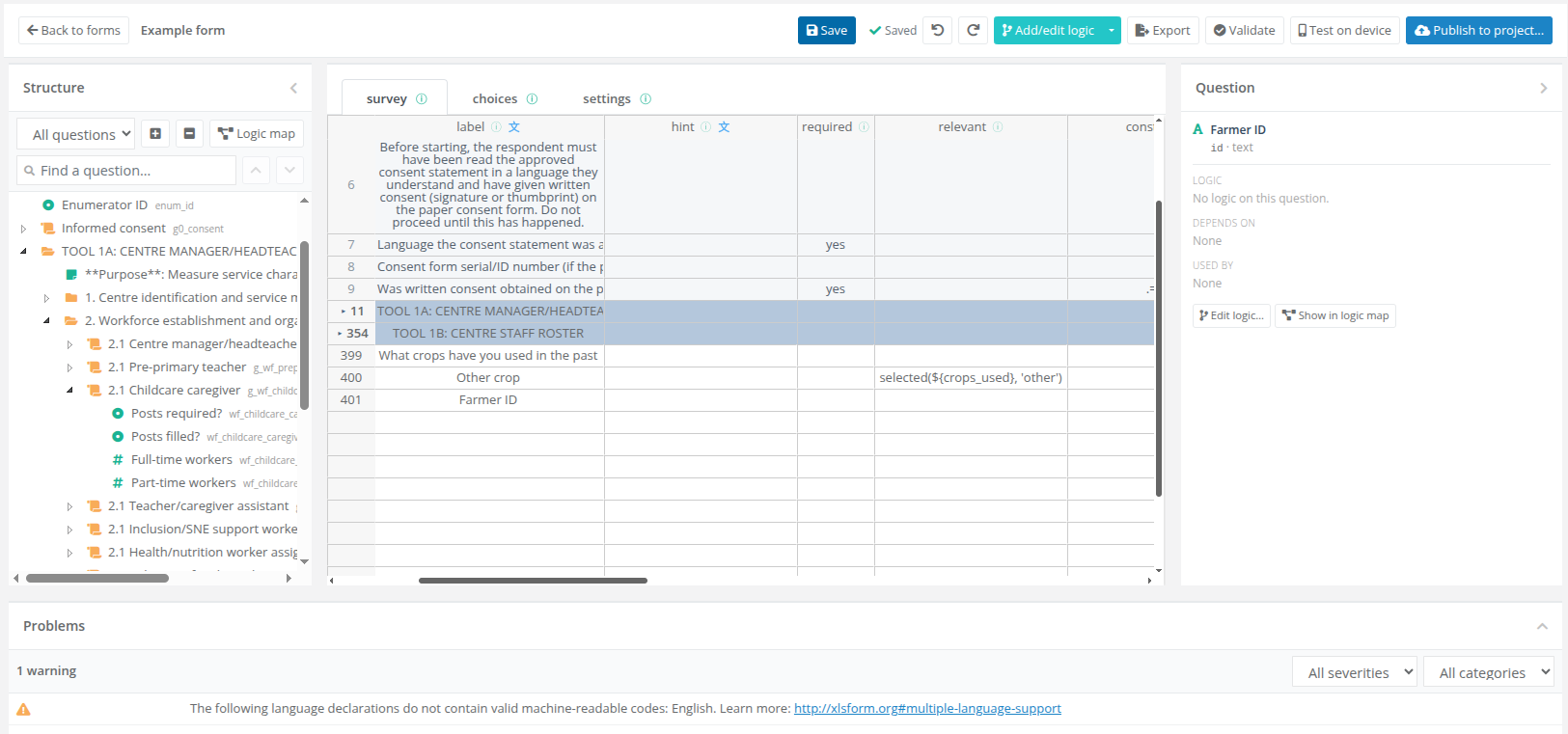
The FormBuilder editor with a form open. The toolbar holds Back to forms, Save, undo and redo, Add/edit logic, Export, Validate, Test on device, and Publish to project. On the left, the Structure panel lists the form's questions, groups, and repeats as a collapsible tree, with a search box and a Logic map button. In the center, the survey, choices, and settings sheets appear as a spreadsheet with label, hint, required, and relevant columns, and two collapsed groups show as single shaded rows. On the right, the Question panel shows the selected question, Farmer ID, with its logic, what it depends on, and what uses it. At the bottom, the Problems panel lists one warning.

A familiar experience

FormBuilder offers a similar experience to working with XLSForm, but with helpers and intelligent abstraction. Column headers have explanatory popups. You can easily translate labels and other elements. Groups and repeats are containers that you access by going inside (like in graphical software), so you don't need to worry about "Closing a group".
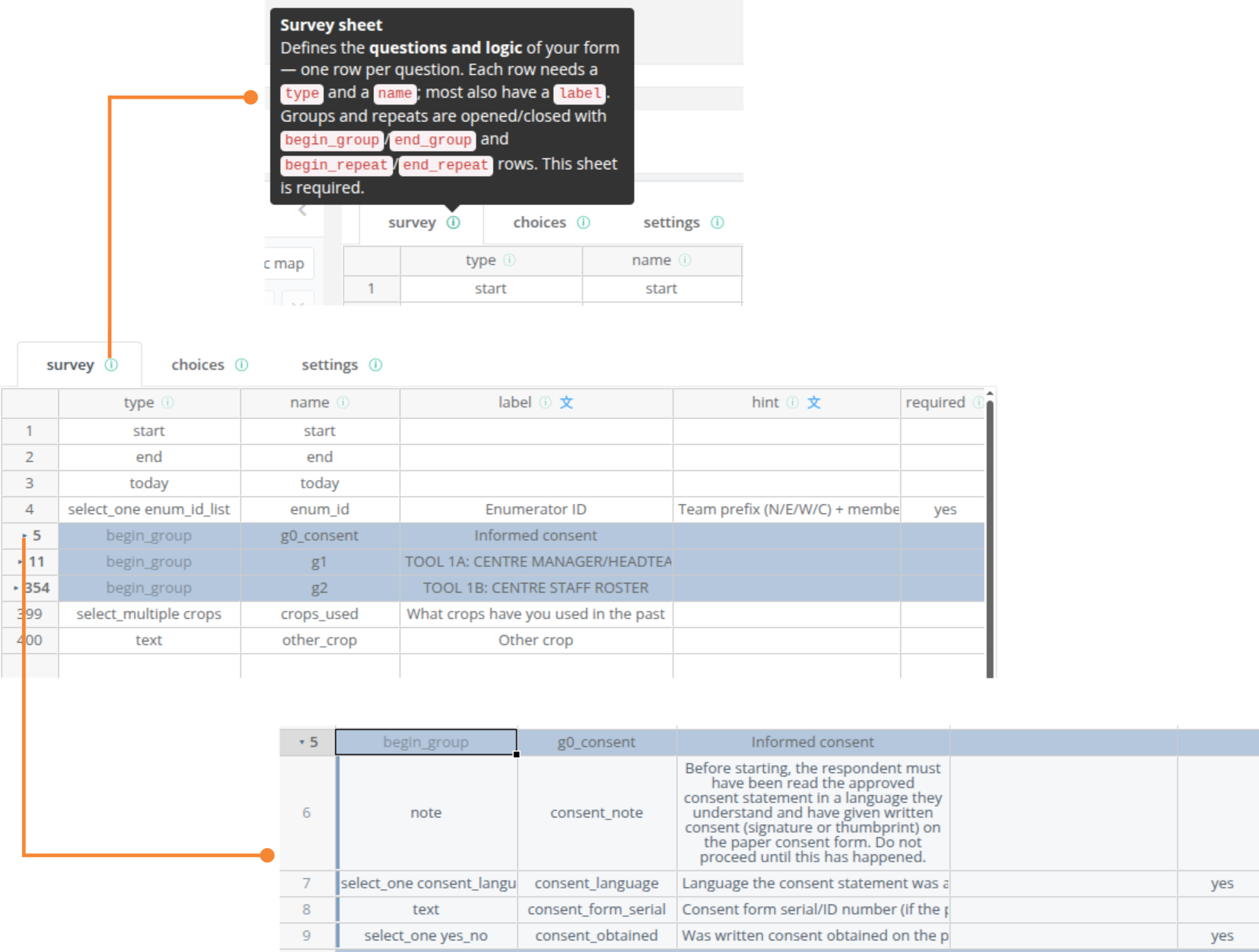
Three views of the survey sheet, joined by connector lines. At the top, the info icon on the survey tab opens a popup that explains the sheet: it defines the questions and logic of the form, one row per question, each row needs a type and a name and most also have a label, and groups and repeats are opened and closed with begin_group, end_group, begin_repeat, and end_repeat rows. In the middle, the sheet shows the familiar XLSForm columns (type, name, label, hint, required), with the Informed consent, Tool 1A, and Tool 1B groups each collapsed into a single shaded row. At the bottom, opening the Informed consent group shows the four questions inside it.

Easy navigation

The survey structure is easy to access. Clicking on a question will take you to the corresponding row. If such a question is inside a group or repeat, the interface will open each container group with "breadcrumbs".
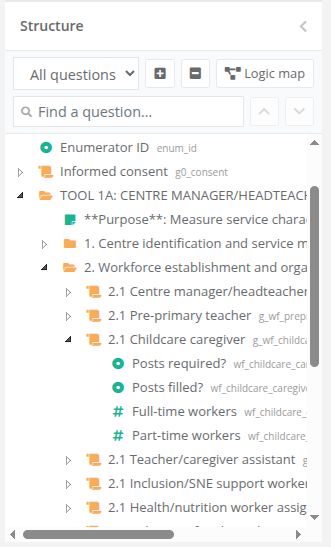
The Structure panel, showing the form as a collapsible tree in which each entry has an icon for its type and its variable name in gray. The Tool 1A group is open down to section 2.1, Childcare caregiver, which holds Posts required, Posts filled, Full-time workers, and Part-time workers. Above the tree are a filter set to All questions, plus and minus buttons, a Logic map button, and a Find a question search box.

Real-time error catching

The interface will tell you if there are errors in the form as you progress.

The Problems panel at the bottom of the editor, reporting one warning: the language declaration English does not contain a valid machine-readable code, with a link to the XLSForm documentation on multiple language support. Two menus filter the list by severity and by category.

Question library

Experienced users can write questions directly in the spreadsheet, just like in Excel. New users can use the question library. Our library combines all question types with their appearances and explanations. Adding a question will add it to the survey sheet with the correct appearance.
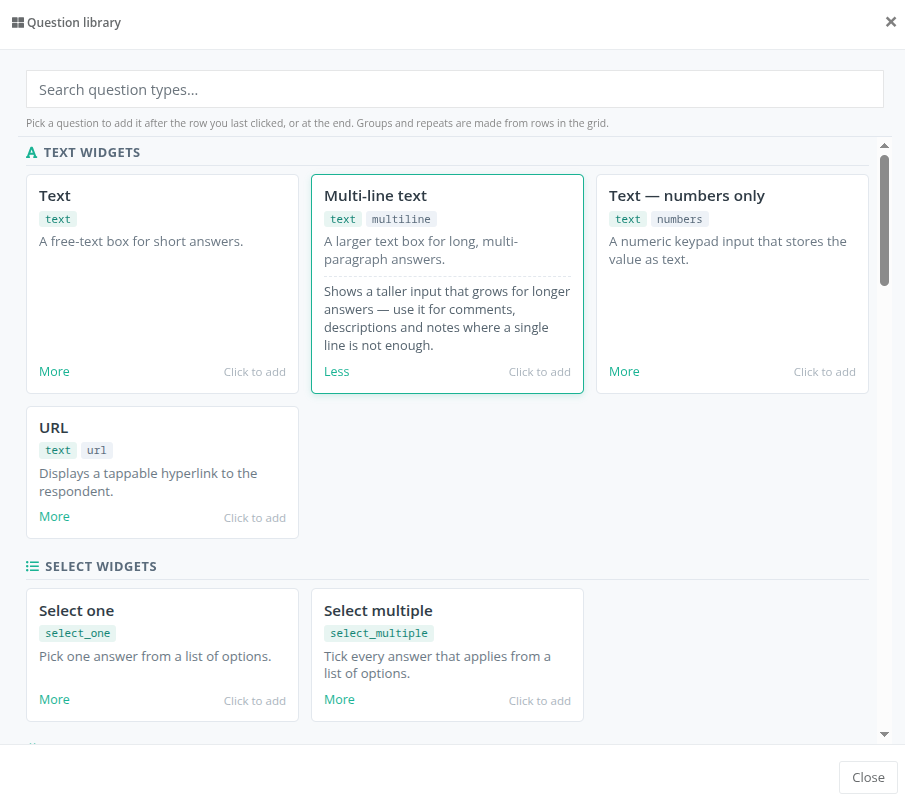
The Question library dialog, with a search box for question types and a note that a picked question is added after the row you last clicked, or at the end. Text widgets come first, as cards for Text, Multi-line text, Text with numbers only, and URL. Each card shows the type and appearance it adds, a one-line description, a More link, and Click to add. The Multi-line text card is expanded to explain when to use it. Select one and Select multiple follow under Select widgets.

Intelligent logic

We spent a lot of time getting the logic right. Our logic editor provides full syntax highlighting and helpers to minimize errors. You can test each logic statement independently to assert that it performs as expected.
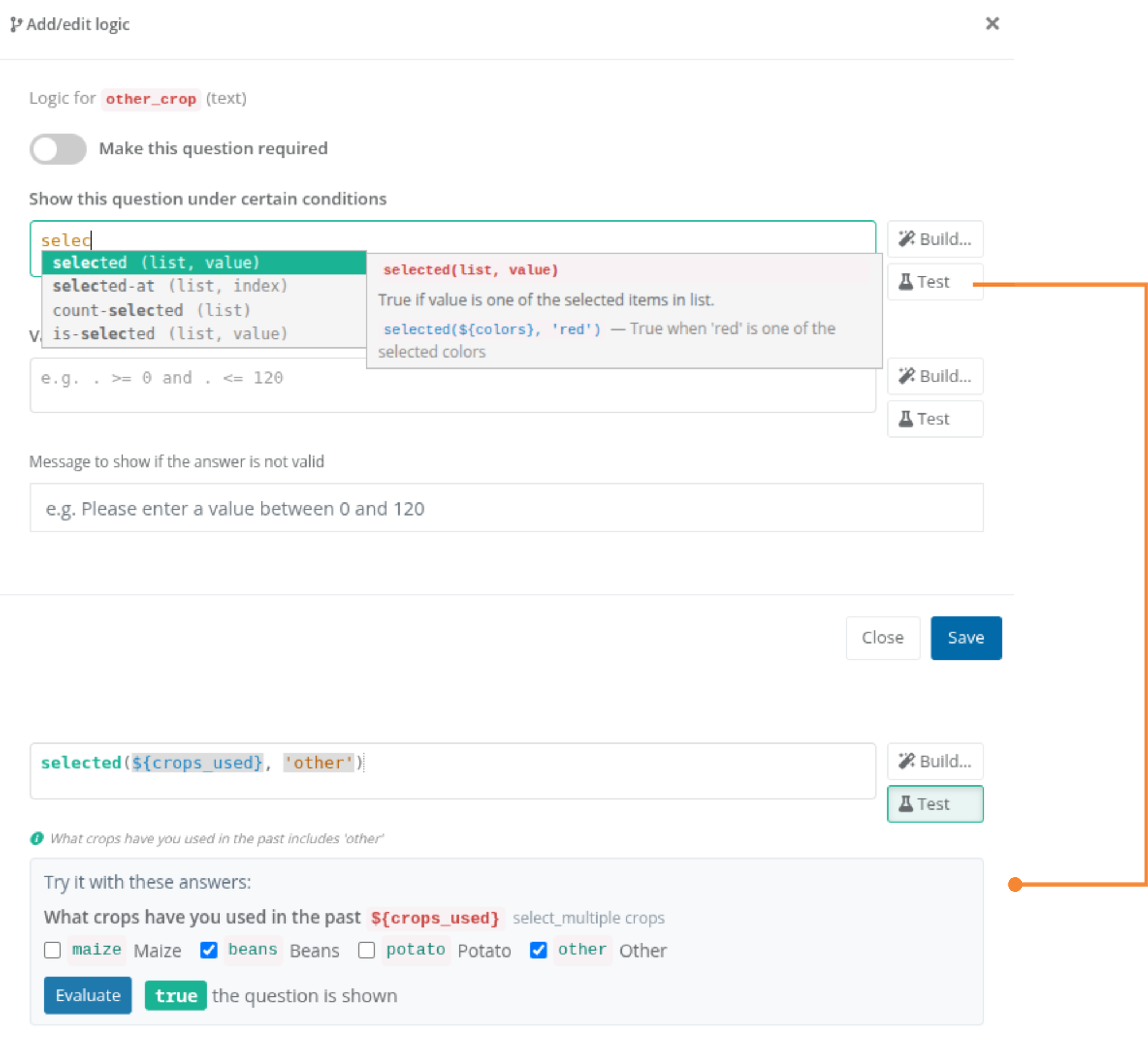
The Add/edit logic dialog for the question other_crop. Typing selec in the box that controls when the question is shown opens a list of matching functions (selected, selected-at, count-selected, and is-selected) beside a help card with the syntax of selected(list, value), what it returns, and an example. Every logic box has Build and Test buttons. Below, the finished expression selected(${crops_used}, 'other') is restated in plain words as: What crops have you used in the past includes 'other'. A test panel lets you tick sample answers, and with Beans and Other ticked, Evaluate returns true and the question is shown.

AI-driven logic

Logic is a major obstacle in the ODK learning curve. New users can write logic in natural language, even for the most challenging tasks. The generated expression includes a confidence level and can be tested.
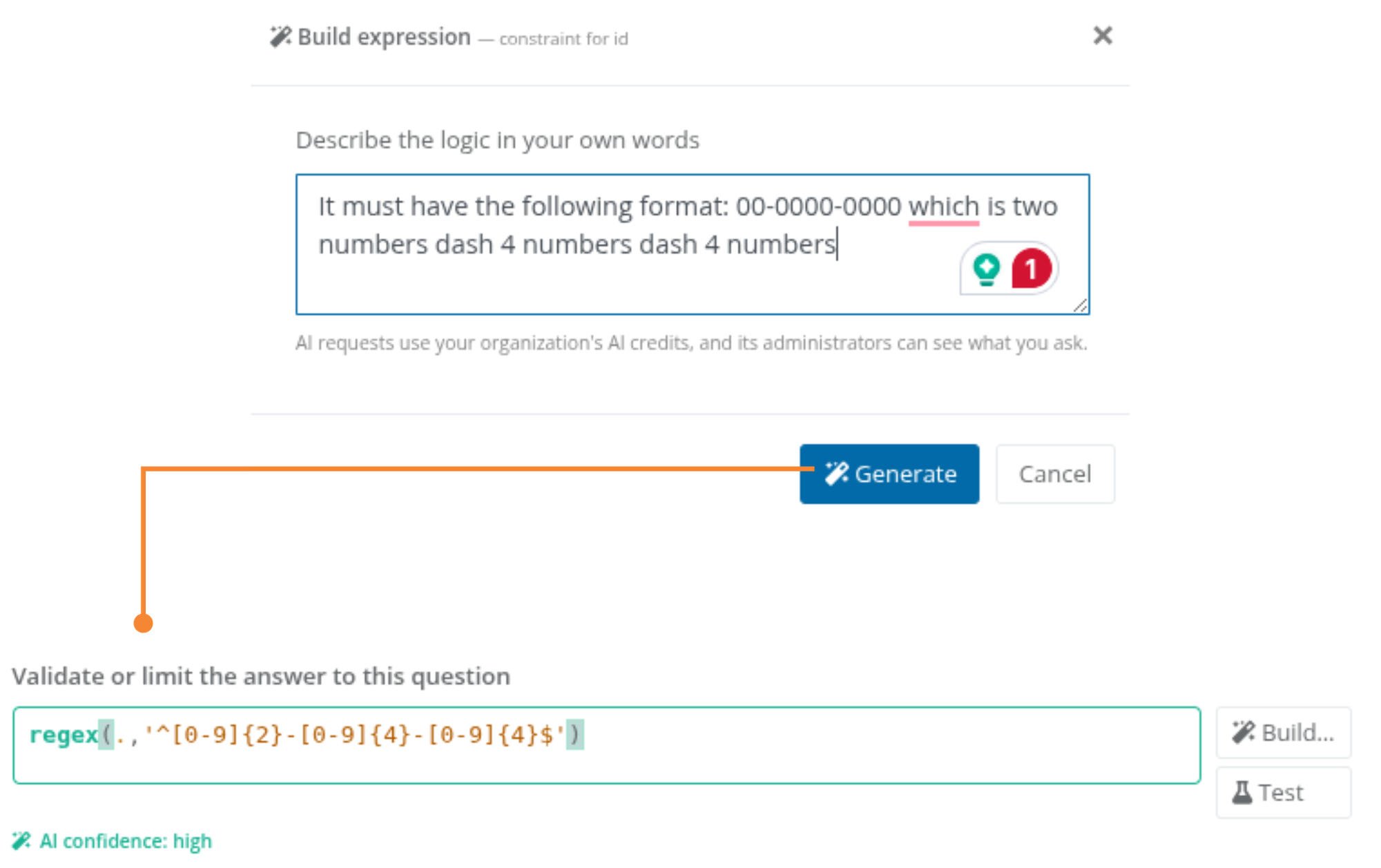
The Build expression dialog for a constraint on an ID question. Under Describe the logic in your own words, the user has written that the answer must have the format 00-0000-0000, two numbers, a dash, four numbers, a dash, and four numbers. A note says AI requests use the organization's AI credits and that its administrators can see what you ask. Clicking Generate fills the box that validates the answer with a regular expression for two digits, a dash, four digits, a dash, and four digits, marked AI confidence: high, with Build and Test buttons beside it.

Logic across the survey is no longer invisible

The "Logic Map" shows how your ODK Form flows from beginning to end and how each question connects to the others.
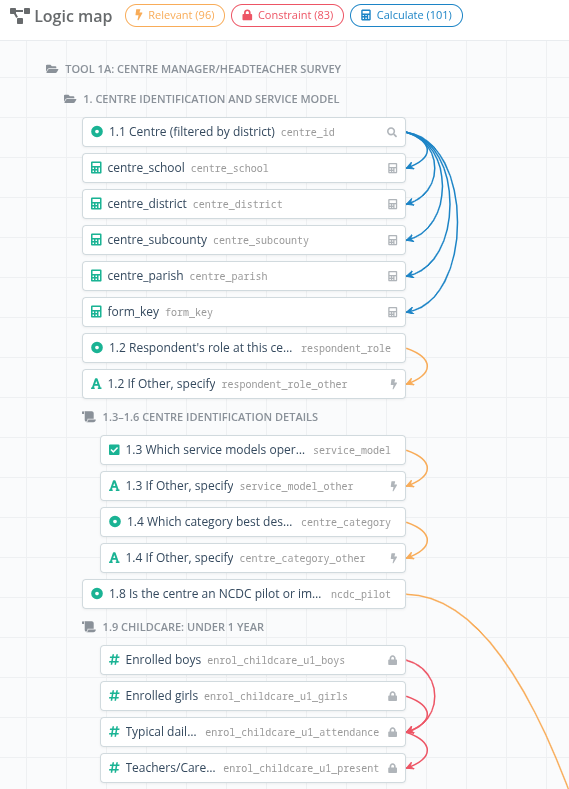
The Logic map, with counters for 96 relevant, 83 constraint, and 101 calculate expressions. Questions are listed in form order inside their groups, each with a type icon, its label, and its variable name, and colored arcs connect related questions. Blue arcs run from the 1.1 Centre question to the five calculations derived from it: school, district, subcounty, parish, and form key. Orange arcs link each If Other, specify question to the question that reveals it. Red arcs chain the enrollment counts for children under one year, whose constraints check one another.

Users can evaluate logic in real time and visually determine non-reachable sections across the survey.
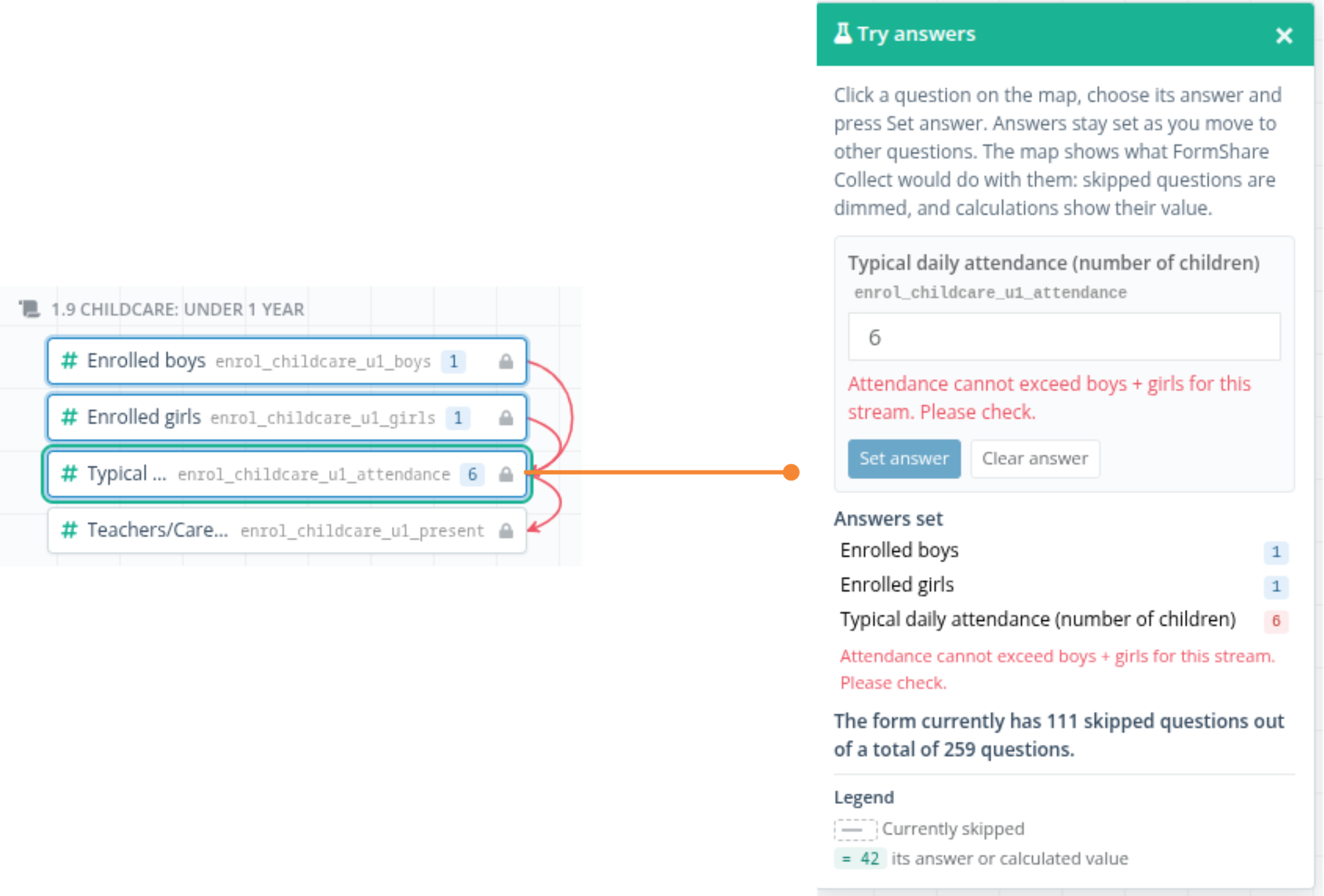
Trying answers on the Logic map. On the left, section 1.9, Childcare: under 1 year, shows Enrolled boys and Enrolled girls set to 1 and Typical daily attendance set to 6, joined by red constraint arcs. On the right, the Try answers panel explains that the map shows what FormShare Collect would do with these answers: skipped questions are dimmed, and calculations show their value. The attendance of 6 breaks its constraint, so the panel shows the message Attendance cannot exceed boys + girls for this stream. Please check. A summary reports that the form currently has 111 skipped questions out of a total of 259.

Enabling a learning path

FormBuilder lets users create a form in minutes and also enables a learning path from newbie to expert because it doesn't abstract ODK; it makes it visible, so users can learn and eventually create a form without any aid.

Like any cool feature in FormShare, FormBuilder is available on all our SaaS plans. I hope you find it as exciting as we felt when we created it.

All product and company names mentioned are trademarks or registered trademarks of their respective owners. FormShare and QLands are not affiliated with, endorsed by, or sponsored by any of them. ODK is free and open-source software, getodk.org.

… views
← Back to all posts